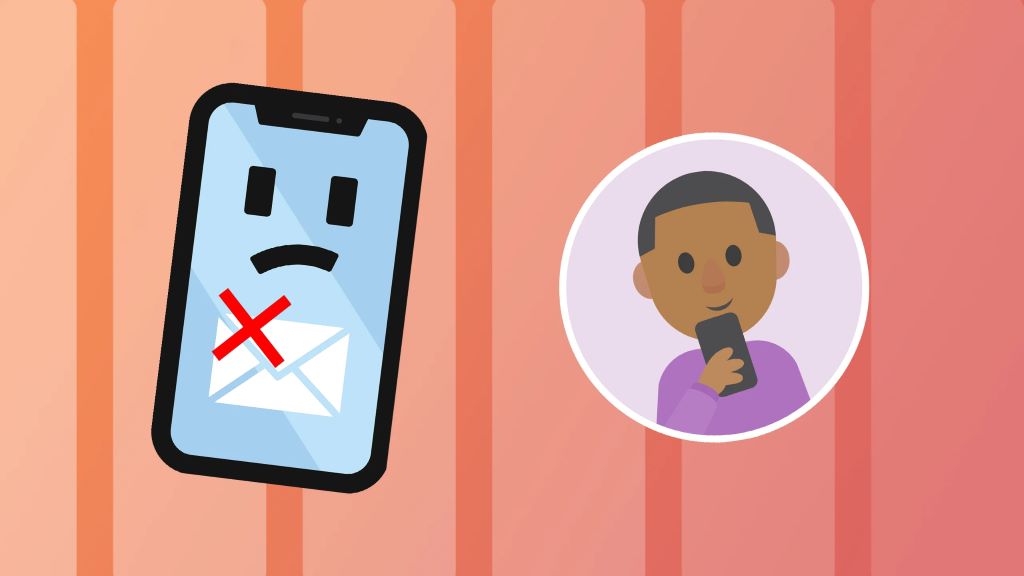
If you are not receiving emails on your iPhone or if they do not appear in the inbox of your mail application, here are some recommendations to solve this problem.
What to do when you do not receive e-mails on your iPhone
The fixes below apply to all iPhones.
Make sure that iCloud email is enabled.
If you have been using your iCloud email, it is essential to make sure it is still enabled.
2. Add a third-party e-mail service
What if you don't use iCloud email but Gmail, Outlook, Yahoo, Hotmail or some other email? From iPhone accounts within settings you can add an external email.
3. Ensure Internet connectivity.
Make sure you have a working connection, either Wifi or mobile data. If you are using a VPN consider disabling it, as some email services may not work properly while you are connected to a VPN.
4. Set up the appropriate mail fetching configuration
iPhone does not display emails in the inbox? When you are in the Mail app, scroll down to refresh the screen. Now, it should download any pending emails that the app has not yet fetched. Also, tap Mail «Inboxes» to view all inboxes or any specific email inboxes
5. Verify the notification settings of the mail application.
If you do not receive emails on your iPhone, make sure that the notification settings are correct.
6. Check the iCloud mail server status.
It happens rarely, but you can't rule out the probability. If you see a green dot for iCloud Mail, everything is working. If it's orange or red, you'll have to wait until Apple fixes the email issues.
7. Re-enable access to the Google account.
Gmail not working on iPhone, refusing to sign in or send and receive emails?
Try to regain access to your Gmail account.
8. Make sure you have free space in iCloud
Your iCloud emails and attachments count against the free 5GB space you get with each Apple ID. If it's almost full, try to free up space. Once you have some free space, you can send and receive emails using your iCloud account.
9. Restart your iPhone
Another useful solution to solve these problems is to restart your iPhone. Use the physical buttons to turn it off and after waiting a minute, turn it back on. Now, open the Mail application and see if you can use it or not.
10. Upgrade your iPhone
The mail app is built-in and you cannot update it from the App Store. Therefore, if the app has some bugs, Apple patches them through iOS updates.
11. Trying to access iCloud Mail on iPad Safari?
You cannot open iCloud Mail in Safari on iPhone. But you can do it on iPad, Mac, Windows PC devices. If you cannot manage iCloud in iPad Safari, clear the browser data.
12. Turn off or delete email from iCloud and add it again.
Disable iCloud email. When you sign out of your Apple ID, you also sign out of iCloud email.
13. Reset all settings if you do not receive e-mails on the iPhone
Finally, if even updating your iPhone and logging out of your Apple ID doesn't seem to work, you can reset all settings. This will not delete personal data such as apps, photos, music, etc. But all settings (wifi, notifications, Bluetooth, VPN, keyboard, etc.) will be reset to default values.
Email works fine on the iPhone!
I hope you can now use email perfectly in the iOS Mail app. In case nothing helps, you can switch to a different email app.
You can come to one of our stores Datasystem, a company dedicated to the repair of laptops and desktops, data recovery, Apple specialists, computer assemblies and repair of motherboards of all kinds. We have a store located in Calle Doctor Esquerdo n.º 12, and another one in Calle Hernani n.º 13.
With all the features you need
We have experts in computer repair and we know your needs. We have the ability to fix your device at a reasonable price and in the shortest possible time.
Trust
Our technicians have years of experience repairing MAC and iPhone devices.
Speed assured
We can guarantee that your device will be as good as new in the time you need it.
Fair price
In Data System we know that the customer wants the best quality-price, that's why we offer our services at an unbeatable price.
Read our articles on repairs
We have uploaded several articles explaining in detail the repair process of your device.

Update your devices with the security you need
If you are thinking of changing your cell phone and you are not sure which one to choose, come and talk to us.

Where are we located?
- C. de Uruguay, 21, 28016 Madrid
- C. Dr. Esquerdo, 12, 28028 Madrid