Customize the lock screen background on the iPhone
- First, wake up your screen by touching it.
- Now go to y keep the lock screen to add the new wallpaper.
- Here you can see the add button. Just click on it.
- Now you can set any image as a lock screen background.
- Once you have selected the wallpaper, you can even customize it by adding widgets.
- You can even customize the time and wallpaper in a variety of font styles and colors.
- In addition, there are different filters available to make your wallpaper look prettier.
- To do this, simply press and hold the bottom of the lock screen to obtain the option Customize.
- Click on the Customize option. Here you can swipe the screen from right to left to see more filters.
- You can select the filter you want.
- If you want to change the typeface and the color of your zone hourly, Just tap on the time zone.
- Here you can go and select the font style and the color that you like.
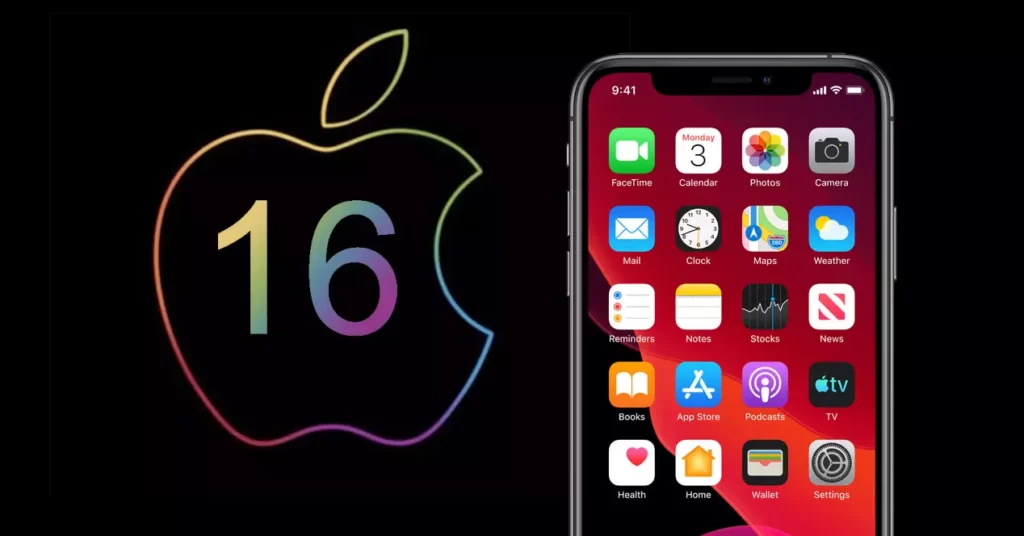
Add a custom widget to your iOS 16 iPhone
- Okay, now let's add the widgets. We will move the imagen a little down for that.
- Touch the Plus icon to add a widget to your lock screen.
- Here you can add your widgets favorites such as the temperature, activity, calendar, battery percentage, etc.
- You can customize more wallpapers like this one. To do so, just click on Done.