In this post we show you what is the cache, how to clear cache in iPhone, Why it is advisable to do it from time to time and what are the advantages of doing it. If you have never set yourself the task of clearing your iPhone's cache data, it's time to start doing it, your device's storage space will thank you for it.
What is cache?
Clearing the cache on your iPhone will not only help you to recover storage space, but also has an impact on the speed of the device and allows you to fix behavioral errors in applications. But let's start at the beginning, what is cache?

In general, the cache memory is the data stored by applications. As they are used frequently, in order to avoid constantly requesting this data, they store it, speeding up the general operation.
Many applications make use of this memory, when you have a lot of apps, this «bag of data» can become a real burden for your iPhone.
Clear Safari cache
One of the first apps we should think of as a cache accumulator is the browser, since the websites we visit (and we visit many more than you think) have cookies and record a lot of cache data.
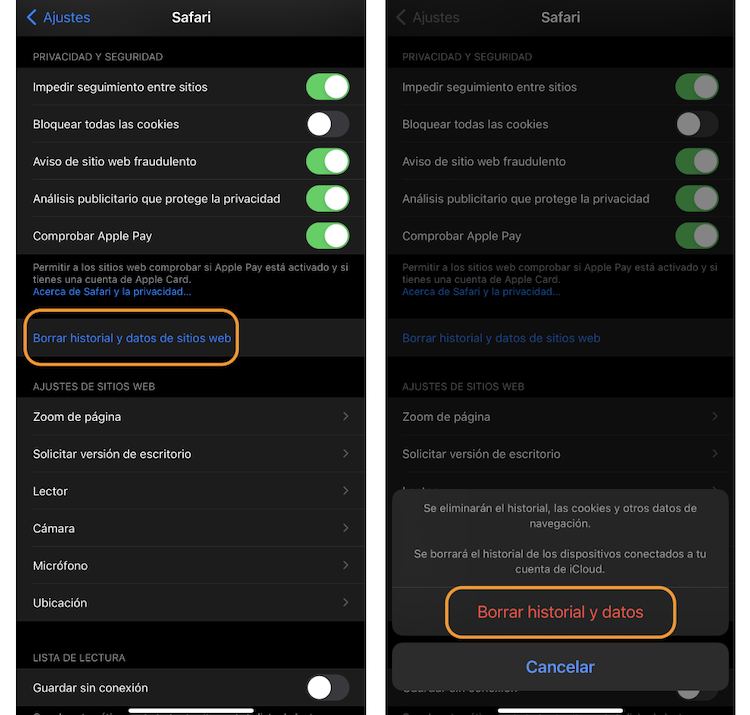
You can free up memory and improve your iPhone's performance by clearing Safari's cache. To do this, go to Settings > Safari and among the options at the bottom you will see Clear history and website data.
Below is the Advanced option and, inside, Website Data. If you have done the previous step correctly it should now be at zero (if you are curious how much you had accumulated before, check before deleting).
Clear cache of third-party applications
Along with Safari, you can clear cached data for other native and third-party apps. Some (unfortunately not all) have a setting to clear their cache.
In general it is usually in Settings > the application in question in the list > Reset cache. If you don't have this option, you can just uninstall the app. In general, you can always reinstall it when you need it, and it won't be taking up space in the meantime.
Hard reset to clear iPhone cache
The last way (a bit beastly) to get rid of unwanted cache on iPhone is to force restart. The system is a little different depending on the iPhone model.
- Models with Face ID such as iPhone 12, iPhone SE 2 and iPhone 8: press and release the volume up button, press and release the volume down button and press and hold the side button. Release only when you see the Apple logo.
- For iPhone 7: press and hold the volume down button and the lock button on the iPhone until you see the Apple logo.
- All other models: press and hold the iPhone home button and lock button until you see the Apple logo.
Other options
Another way to clear iPhone cache is by using third-party applications designed specifically to optimize the iPhone. They can usually clear more than just the cache, they also find duplicate files and the like.
However, be very careful when choosing a third-party cleaner; remember that you are putting your phone at risk by doing so, as you are giving a lot of permissions to that app. Trust only developers with products that have been on the market for a long time, are reputable and, ultimately, that you can trust.
Now that you know how to clear cache on iPhone you have no excuses why not scrape those GB of space that are stealing from you. Surely, you will also experience performance improvements in the normal use of the device.
For more information, visit our store.