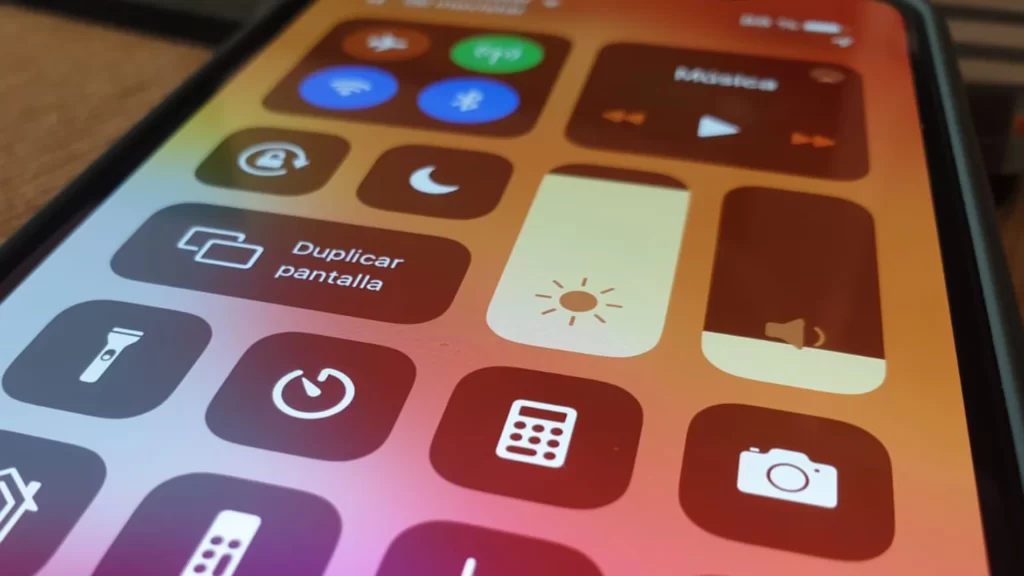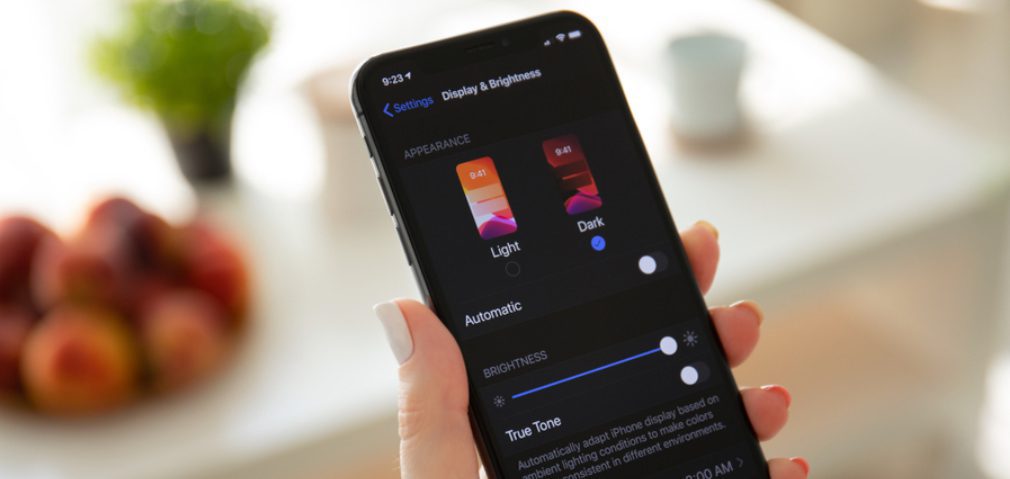
It is possible to change the theme of your iPhone device and thus modify the look, the colors, reorganize your applications... change, it feels good, even on your phone! In fact, after a certain time of use, it is quite normal to start to get tired of the themes predefined by Apple. So, in this article you will find all the tips to change the theme of your iPhone, colors, fonts, layout, wallpapers... Good reading!
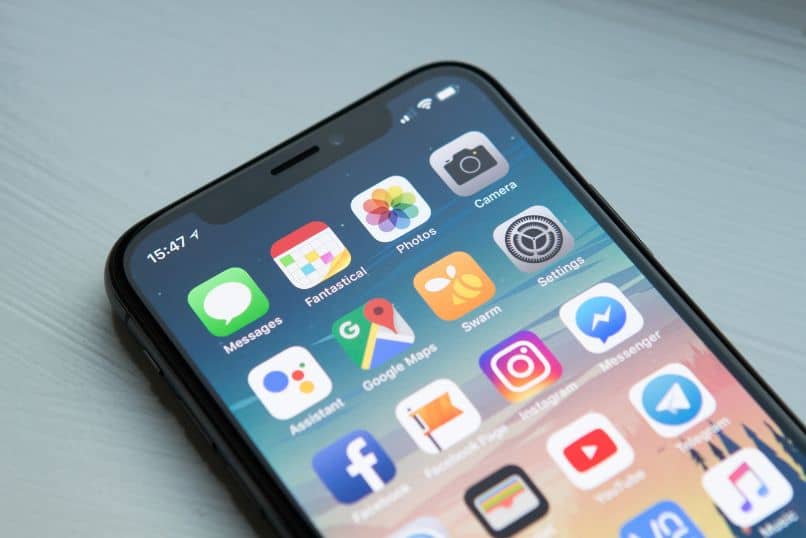
THE STEPS TO FOLLOW TO CHANGE THE THEME OF YOUR IPHONE
First of all, let's start by explaining what Apple's default theme is: it is a predefined set of fonts, wallpapers, colors and layout. If the default theme doesn't suit you and you want to change it, then you will have to download an app from the App Store in order to choose a theme that suits you. Here is an application that you can choose: the Winterboard application. To use it, your iPhone must be jailbroken. So you can open the Cydia app and then download the Winterboard app. You will have to restart your iPhone so that the Winterboard application can work properly.
Once you have restarted your iPhone device, the only thing you need to do is to search for the installed themes. To do this, you have to open the Select Themes section and check the boxes of the themes you want to customize on your iPhone.
At any time you can download more themes by opening Cydia and going to the menu sections. Scroll down the menu until you find the Themes tab: . All themes are accompanied by images that allow you to visualize a particular theme. This way you can better choose the theme you want to apply to your iPhone. Once you have chosen the theme, just click on Installer to download it on your iPhone device.
You should know that for jailbroken iPhones, Apple's warranty will no longer be able to cover any future problems. If you download too many different themes on your iPhone, it may slow down your iPhone.