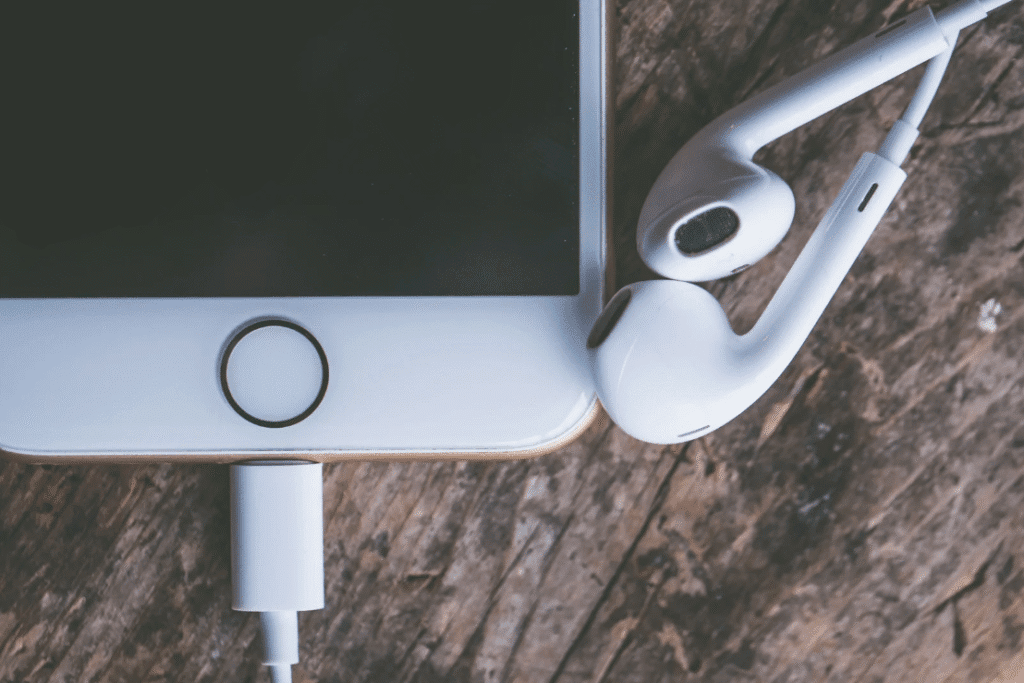
There are times when using our iPhone, when performing any action such as recording a video or audio, the microphone simply does not work, and does not detect the audio. If this happens to you, we will leave you some methods that you can use to solve this problem.
If you can't be heard during phone or FaceTime calls
- Open the Voice Memos app.
- Tap the Record button
 , If you want to stop the recording, speak in the lower part of the phone and stop the recording.
 - When you play the voice memo, you should hear your voice clearly.
- If you don't hear your voice clearly, contact Apple Support.
If you are not heard when you are using the speakerphone
- Open the Camera app.
- Record a video while talking by directing your voice to the top of the iPhone.
- Tap the camera selector to switch to the other camera. Then record another video while talking by directing your voice to the top of the iPhone.
- When you play the videos, you should hear your voice clearly.
If the microphone does not work
If the microphone does not work in a specific application:
- Go to Settings > Privacy > Microphone.
- Check that the application is activated.
- If the application has permission to access the microphone, or it is not in the list
If the problem persists, try these general solutions:
- Restart your iPhone.
- Check for software updates.
- Clean the microphone.
- Try a headset.
If none of these solutions work, there may be a hardware problem. Contact Apple Support for additional assistance.