In this article we are going to share some precautions you need to take so that you don't get to ask the question: What to do if my iPhone has been stolen?
There is no guarantee that these tips will protect you in all cases, but following them will reduce your overall risk and should be taken into account.
My iPhone has been stolen, what do I do?
Having your phone stolen is bad enough, but we have to remember that we store a lot of relevant information on the device that can end up in an even bigger loss than the cost of the iPhone itself.
For example, you probably have your bank applications installed, passwords saved and email accounts active.
Therefore, the first thing you should do is to shield access to your data on the device and learn how to lock a stolen iPhone.
If you have a passcode on your iPhone, you're pretty safe at first, but if you don't, or want extra security, use «Find My iPhone» to lock your phone and add a passcode. That step will prevent the thief from using your phone.
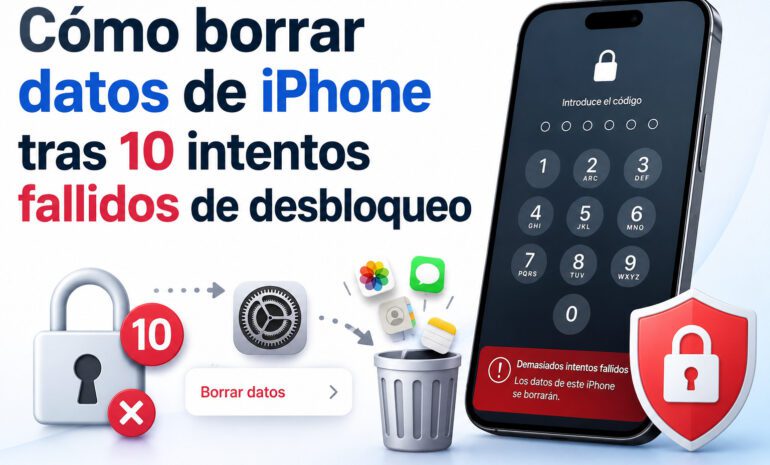
If you can't recover the iPhone or it has sensitive information on it, you are still left with remotely wiping the data from the iPhone. Deleting the data may not stop the thief from using your iPhone, but at least he won't have access to your personal data afterwards.
The following are the steps to use «Find my iPhone» from the iCloud website:
- Visit iCloud.com and sign in with the same Apple ID you are signed in with on the iPhone.
- Select «Search iPhone»to search for all devices on which you are logged in with that ID.
- Find My iPhone shows the location of your device as a green dot. You can zoom in and out and view the map in standard, satellite and hybrid modes.
- To locate a specific device instead of showing all your devices on the map, select «All devices» and choose a different device.

Inside the icon with a i there are additional options such as the phone playing a sound. To lock the device screen remotely and set a passcode (even if you have not set a passcode on the device), select “Lost Mode”. This prevents someone else from using the device and accessing your personal data.
You can also use the “Lost Mode” to write a message that appears on the device's screen. For example, a phone number so that the person who has the iPhone can get in touch (you might have run into someone of good will).
To remotely erase your iPhone, in case you have lost hope of recovering it, choose «Erase iPhone». Erasing the phone's data prevents you from finding it in the future in this way, but if you recover the device later, you can restore your data from the backup.
What to do if your stolen iPhone is disconnected
Even if Find My iPhone is configured, your device may not appear on the map. There may be several reasons for this:
- It is turned off or out of battery
- Not connected to the Internet
- You have deactivated the localization services
However, if “Find my iPhone” does not work, three options are always available: play sound, lost mode and erase iPhone. Use the one you want, the next time the device is connected, the option you have chosen will be executed.
An iPhone running iOS 15 and later will show up in Find My iPhone every time, even if it is turned off or low on battery. This version of the platform uses Bluetooth and near field communication to ping other Apple devices in the area to determine its location.
Remove debit and credit cards from Apple Pay.
If you use Apple Pay, Apple's wireless payment system, the thief has your credit or debit card information stored.
The likelihood of someone making fraudulent charges is relatively low, as Apple Pay uses the Touch ID fingerprint scanner or Face ID facial recognition system as part of its security.
Also, if you have followed the previous step, the thief is confronted with the security code you have set.
In any case, another logical step to take is to cancel the cards via iCloud, it is done this way:
- Log in to iCloud from any device with a web browser: desktop, laptop, another iPhone or another mobile device and select the stolen phone from the list.
- Sign in with your iCloud account information, which is likely to be the same username and password as your Apple ID.
- Click the Settings icon, or your name in the upper right corner, and select iCloud Settings.
- Apple Pay information is linked to each device on which it is set up, and not to your Apple ID or iCloud account. Therefore, you need to find the phone that was stolen from you in the My Devices section.
- Click on the stolen iPhone with the card to open it in a new window.
- Below the image there is a list of the cards on the iPhone. Choose «Delete all».
- Select “Delete” on the confirmation screen to complete the deletion of your financial information.
Once you recover your stolen iPhone or buy a new iPhone, you can set up Apple Pay again as usual.
What not to do when you lose an iPhone
If you have been able to locate your iPhone using a location app and it is moving and so on, it may not be advisable to try to recover it yourself. If you've lost it you might, but if you're sure it's been stolen, going to the home of the person who has stolen your phone could put you in danger. A thief is a thief, right?
Instead, contact your local police (or, if you have already filed a report, the one you reported the theft to) and let the officers know that you have information about the location of your phone. With the map, they will recover it sooner. Best of luck.